Connect your kitchen printer yourself.
About ten minutes, no technical knowledge. You need a receipt printer that plugs into your router or joins your wifi, and a Windows computer, a Mac or an Android tablet that stays in the shop.
Four steps
- 1
Get your code
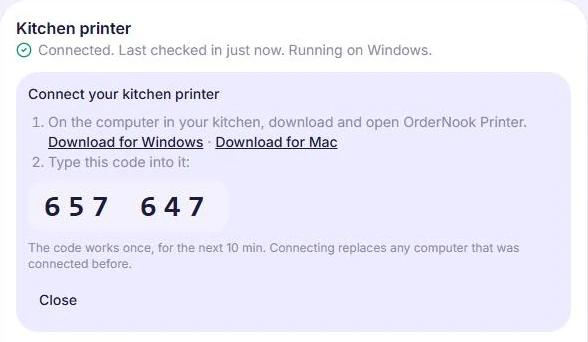
On any device, sign in to OrderNook and open Settings, then Kitchen printer. Tap Connect a printer. You'll see a 6-digit code that lasts ten minutes.
- 2
Install the app on the kitchen computer or tablet
On the computer that stays in the shop, open Settings, then Kitchen printer, and tap Download for Windows or Download for Mac. Open the file when it finishes (on a Mac, then open OrderNook Printer from your Downloads). A setup page opens by itself. On an Android tablet or phone, install OrderNook Printer from Google Play and open it.
- 3
Type the code and pick your printer
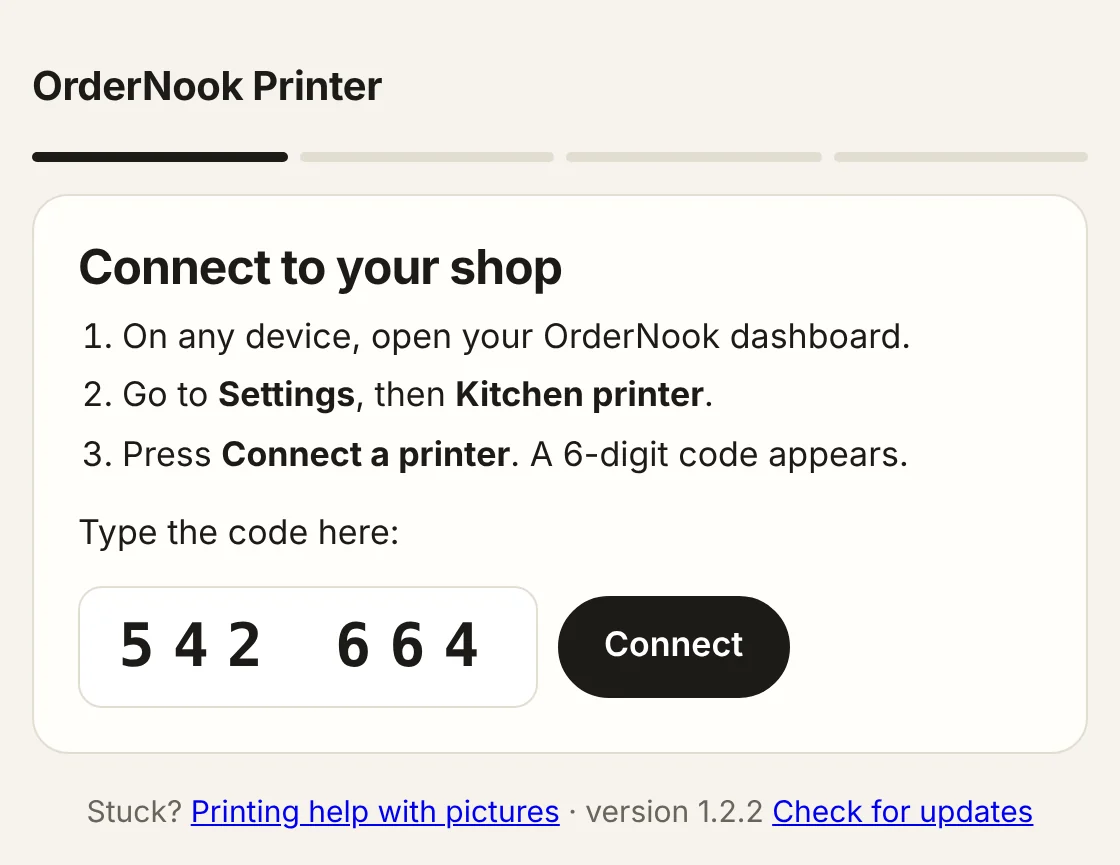
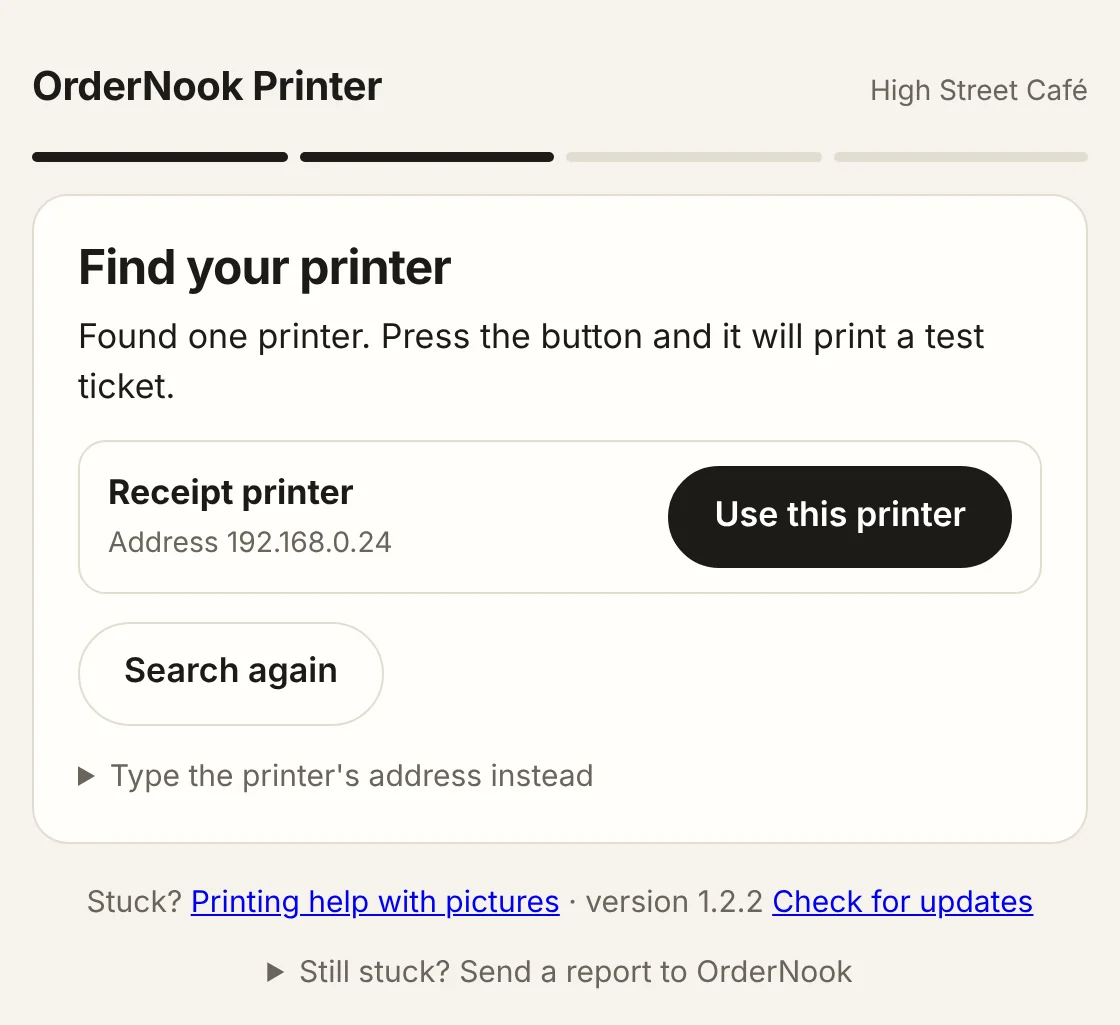
Type the 6-digit code. The app then looks for receipt printers on your network and lists what it finds. Tap yours.
- 4
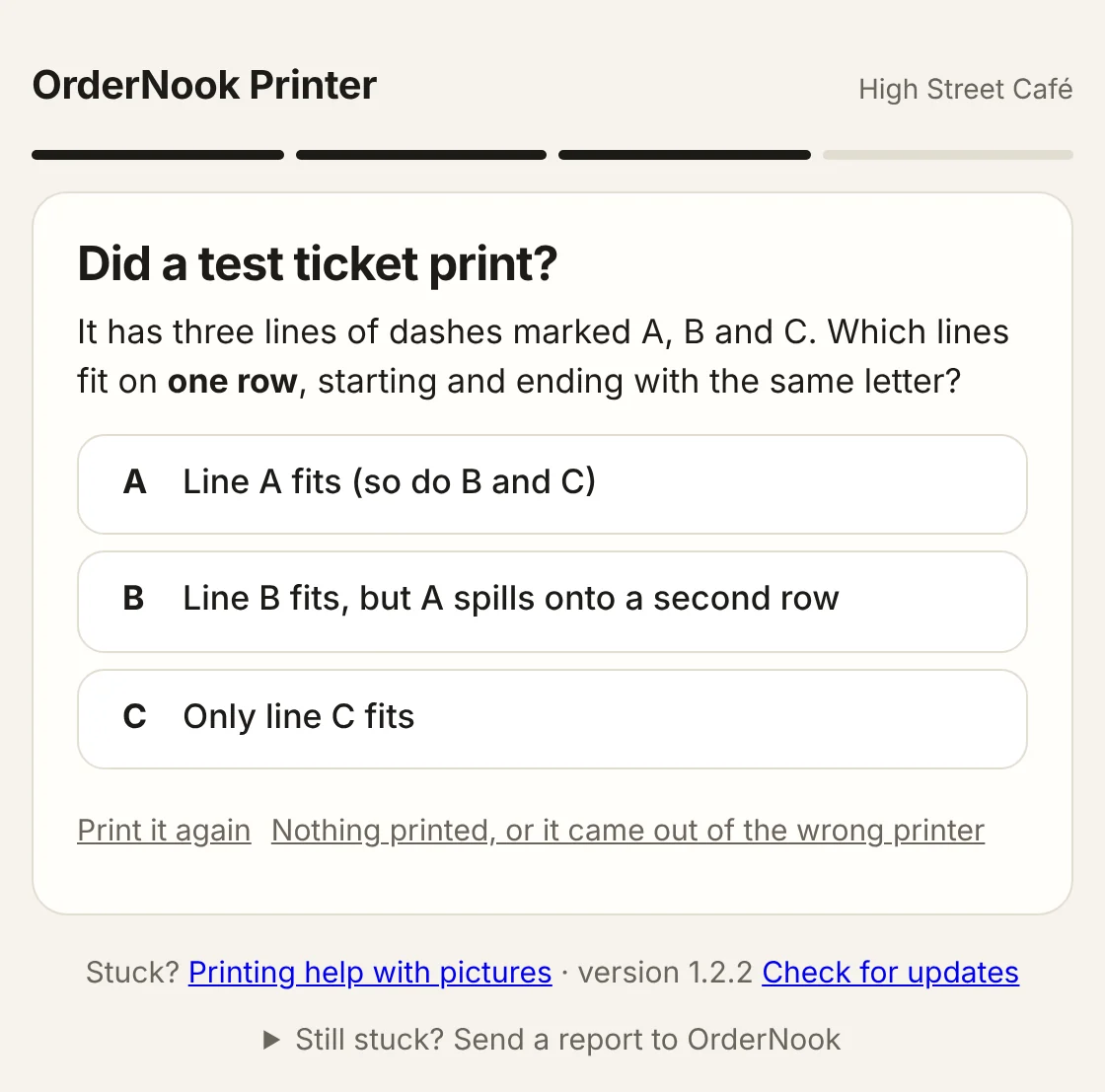
Check the test ticket
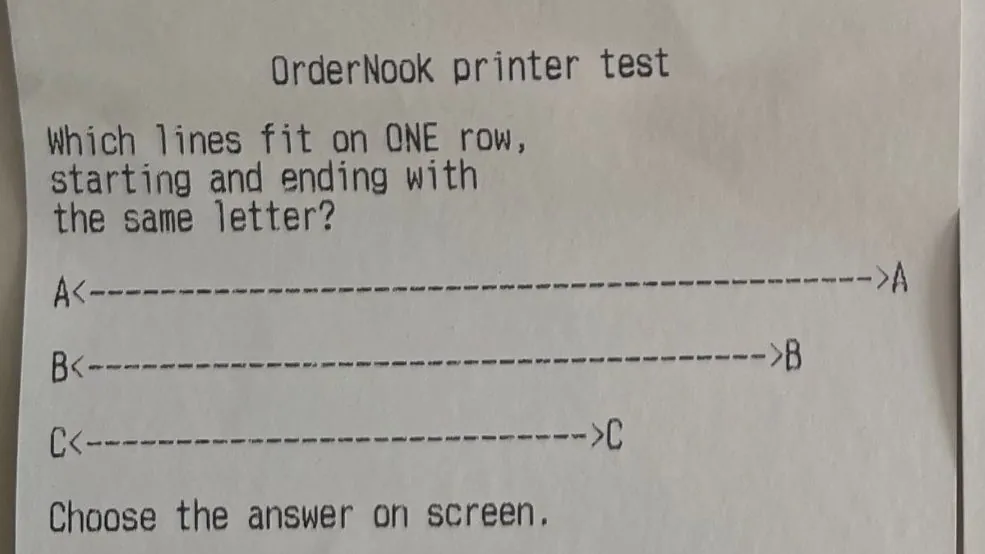
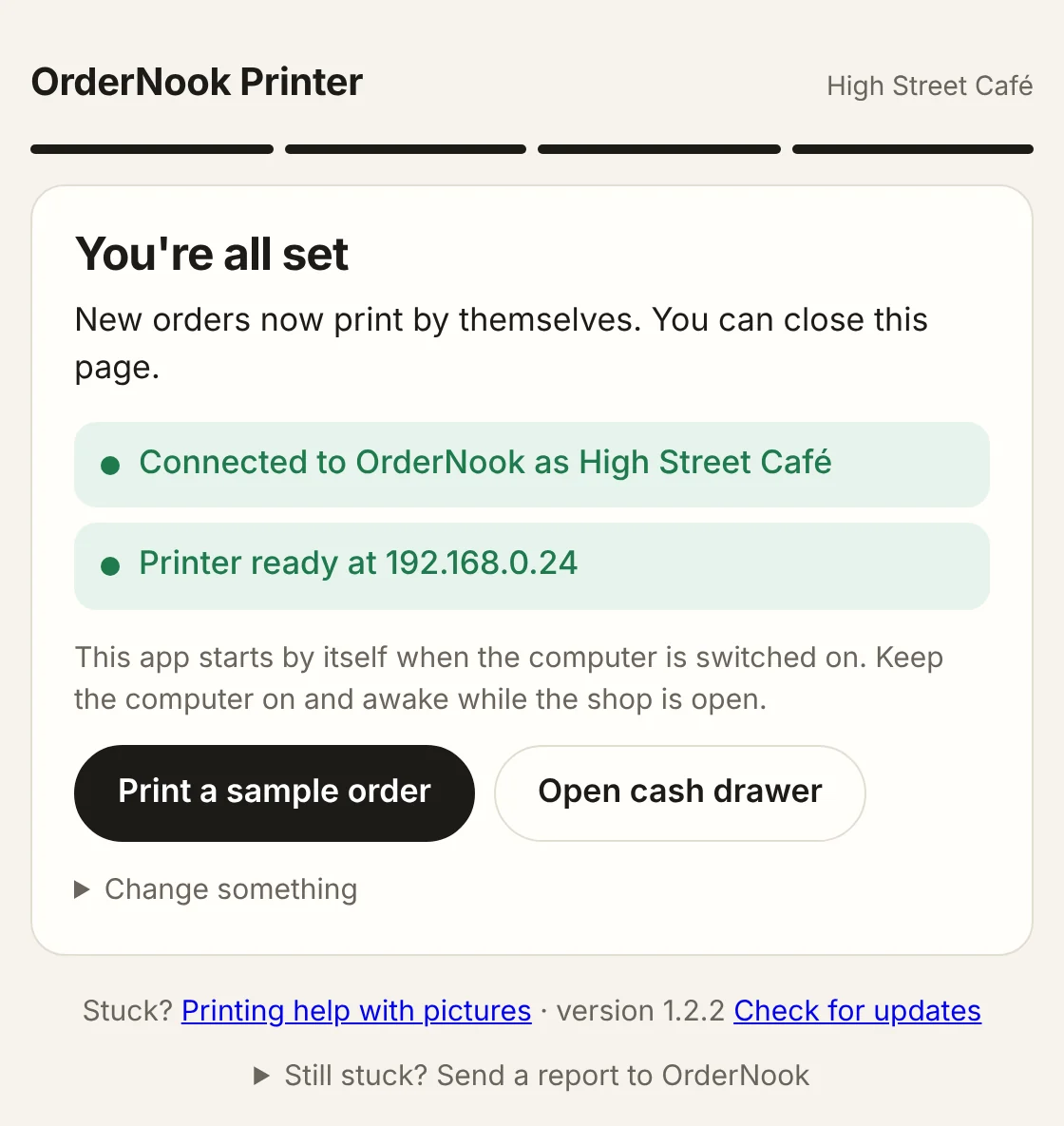
A test ticket prints with three lines marked A, B and C. Tap the line that fits on one row. That's it: new orders now print by themselves.
Already signed in on the kitchen computer? Go to Settings
If something isn't right
Windows says it protected my PC, or the publisher is unknown
- This can appear the first time a new app is opened. Click More info, then Run anyway.
- Only do this for the file you downloaded from your own OrderNook Settings page.
On a Mac: what the questions mean
- "OrderNook Printer is an app downloaded from the internet. Are you sure you want to open it?" Click Open. Apple has checked the app.
- "OrderNook Printer would like to find devices on your local network." Click Allow. Without this the app can't reach your printer. If you clicked Don't Allow, open System Settings, Privacy & Security, Local Network and switch OrderNook Printer on.
- The app has no window and no icon in the Dock. It lives in your Applications folder; open it from there to see its setup page again.
- The Mac version is new. If anything doesn't match this page, email hello@ordernook.uk and we'll set it up with you on a call.
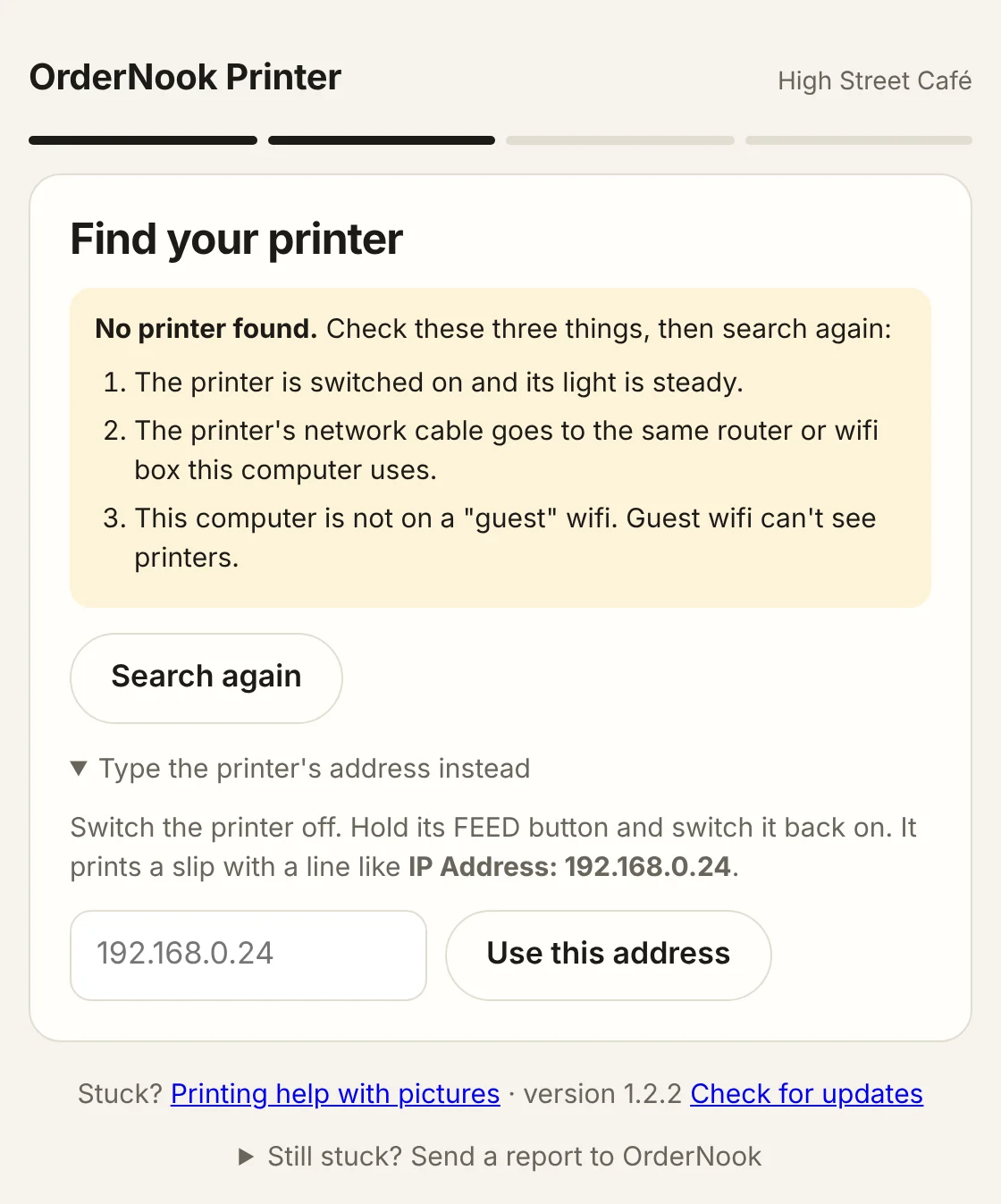
The app can't find my printer
- Check the printer is switched on, with a steady light.
- The printer and the computer must be on the same network. A printer plugged into the router by cable and a computer on that router's wifi is fine. Guest wifi is not: it hides devices from each other.
- Tap Search again. If it's still missing, print the printer's information slip (switch it off, hold the FEED button, switch it on, let go when it starts printing). Find the line that says IP address, then open Type the printer's address instead and enter those numbers.
- Printers that connect only by USB or Bluetooth can't be used yet.
The app found a printer, but nothing printed
- Check there's paper, the lid is fully closed and no red light is showing.
- If your shop has more than one receipt printer, the ticket may have come out of another one. Tap Use a different printer.
- If the ticket is rows of odd symbols, your printer may not be compatible. Reply to any OrderNook email and tell us the make and model on its label.
Tickets run off the edge, or leave a wide empty margin
- Open OrderNook Printer from the desktop shortcut, tap Change something, then Use a different printer, choose the same printer and pick the line that fits again.
Printing was working and has stopped
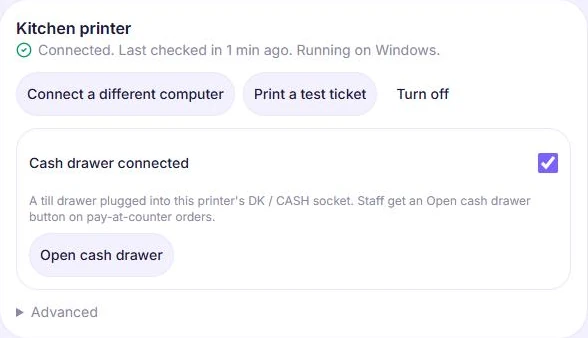
- Look at Settings, then Kitchen printer. It tells you whether the app has stopped or the printer isn't answering.
- App not running: check the computer is on, awake and online, then open OrderNook Printer from the desktop shortcut (on a Mac, from Applications).
- Printer not answering: check power, paper and the network cable. If the router was restarted, switch the printer off and on.
- Orders are never lost. They stay on your dashboard, and today's missed tickets print as soon as the connection is back.
Can I print from an Android tablet or phone?
- Yes. Install OrderNook Printer from Google Play: search for it there, or tap Android (Google Play) under Settings, then Kitchen printer.
- Use a tablet or old phone that stays in the shop, plugged in and on the shop's wifi. Not a phone someone takes home: printing stops whenever it leaves the shop's wifi, and starts again by itself when it's back.
- Switch battery saving off for OrderNook Printer when the app asks, or Android may stop it during the day.
Do I need to leave the computer on?
- It needs to be on and awake while you're open. You can switch it off at night: the app starts by itself when the computer starts.
- If the computer goes to sleep during the day, set its power settings to never sleep while plugged in.
Which computers and tablets work?
- Windows 10 or 11, Macs running macOS 11 or later, and Android tablets and phones running Android 8 or later.
- iPads and iPhones can run your OrderNook dashboard but can't run the printer app.
Still stuck? Email hello@ordernook.uk with the make and model on your printer's label and what the setup page says. We'll help you from there.